
Video Editing in a Google Doc Sounds Dumb...Until You Try Descript
AI-powered editing that kills filler words, clones your voice, and makes video cleanup kinda fun

Editing video is one of those things that sounds fun in theory, like cooking or karaoke, until you actually have to do it for hours. I’ve spent too many late nights staring at waveforms, trimming filler words, and muttering to myself, “Why did we let this person talk for 90 minutes straight? And why do humans like to say ‘like’ and ‘um’ every three seconds? What is wrong with us?”
So imagine my curiosity when I decided to finally mess around with Descript, a tool beloved to podcasters that basically promises, “What if you could edit your podcast or video exactly like editing a Word doc?” Delete a sentence, and the audio deletes itself. Fix a line by typing it, and your AI voice clone says it for you. It’s like Google Docs for post-production, only with way more power, and just enough creepiness to make you question reality. And once I got inside, I realized there’s a whole lot more (like, too much more) going on under the hood than just striking out words.
WHAT EXACTLY IS IT?
Descript started in 2017, spun out of a podcasting startup founded by Groupon’s Andrew Mason, and has since morphed into a kind of Swiss Army knife for post-production.
It’s got screen recording, podcast editing, video cutting, voice cloning, transcription, and much more. The goal? Replace about five different post prod tools in your workflow and make the entire process of editing and fixing video/audio faster, easier, and a little less soul-crushing.
TOP CAPABILITIES
Text-Based Editing Edit audio and video by changing the transcript. Delete a sentence, and the corresponding clip vanishes instantly.
Overdub (AI Voice Cloning) Train Descript to mimic your voice so you can “re-record” lines or fix words by simply typing the change.
Filler Word Removal Automatically removes “ums,” “uhs,” “likes,” and awkward silences.
A whole random assortment of video bells and whistles Translate your video, fix studio sound, fix eye contact, add transitions, remove background, captions, backgrounds, stock images etc. The usual stuff
LET’S SEE WHAT I CAN DO
Disclaimer: Descript is absolutely loaded with tools and I only messed with a handful of them for this piece, mainly the text-based editing. So there’s a whole universe of features I didn’t dive into, and if you’re one of those ambitious AI maniacs, I’d definitely encourage exploring the rest.
Alright, let’s see what this thing can actually do and kick off the party with text based editing, the easiest and most standard feature. I started with a short podcast clip from Neil Brennan’s Blocks podcast featuring American Pie star Jason Biggs, who, as it turns out, apparently loved drugs a lot more than pies. Descript immediately went to work transcribing, and within seconds, there it was: a full Word-doc-style transcript born from a whole lot of rambling and babbling. And a fairly accurate one too, at least upon first glance.
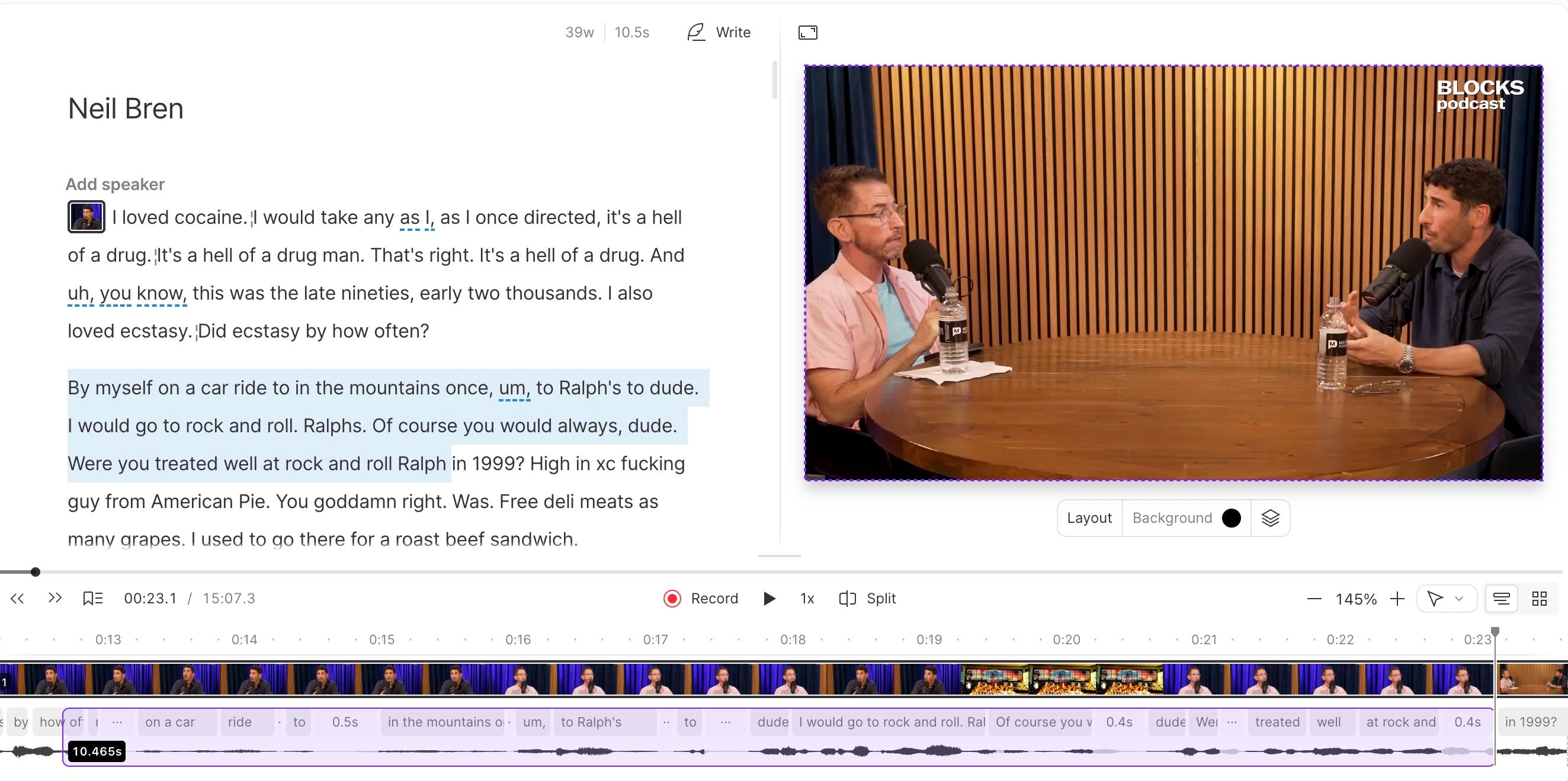
From there, I highlighted a sentence, hit delete, and poof, it was gone from the video. No waveform surgery, no zooming in and out, no panic. It’s freaky how natural it feels once you get the hang of it, and I immediately saw the value for long-form interviews or talks. You can even search for keywords and jump right to that section of the transcript, which is huge for efficiency.
There’s real value in editing this way, even if it feels a little uncanny at first. It’s fast and kind of refreshing. But be warned: if you’re editing only from the text, you’ll end up with some pretty awkward cuts. Descript doesn’t edit based on tone or emotion, just words, so sometimes it chops right through a breath, a laugh, or a natural pause. You’ll save time, but you’ll still have to go back in and give it that human touch. Nothing this easy is perfect…yet.
And while Descript’s whole thing is that you edit by text, it still gives you a timeline view if you’re more old-school. You can drag clips around, cut with a blade tool, scroll through footage, and use selection tools just like you would in Premiere or Final Cut.
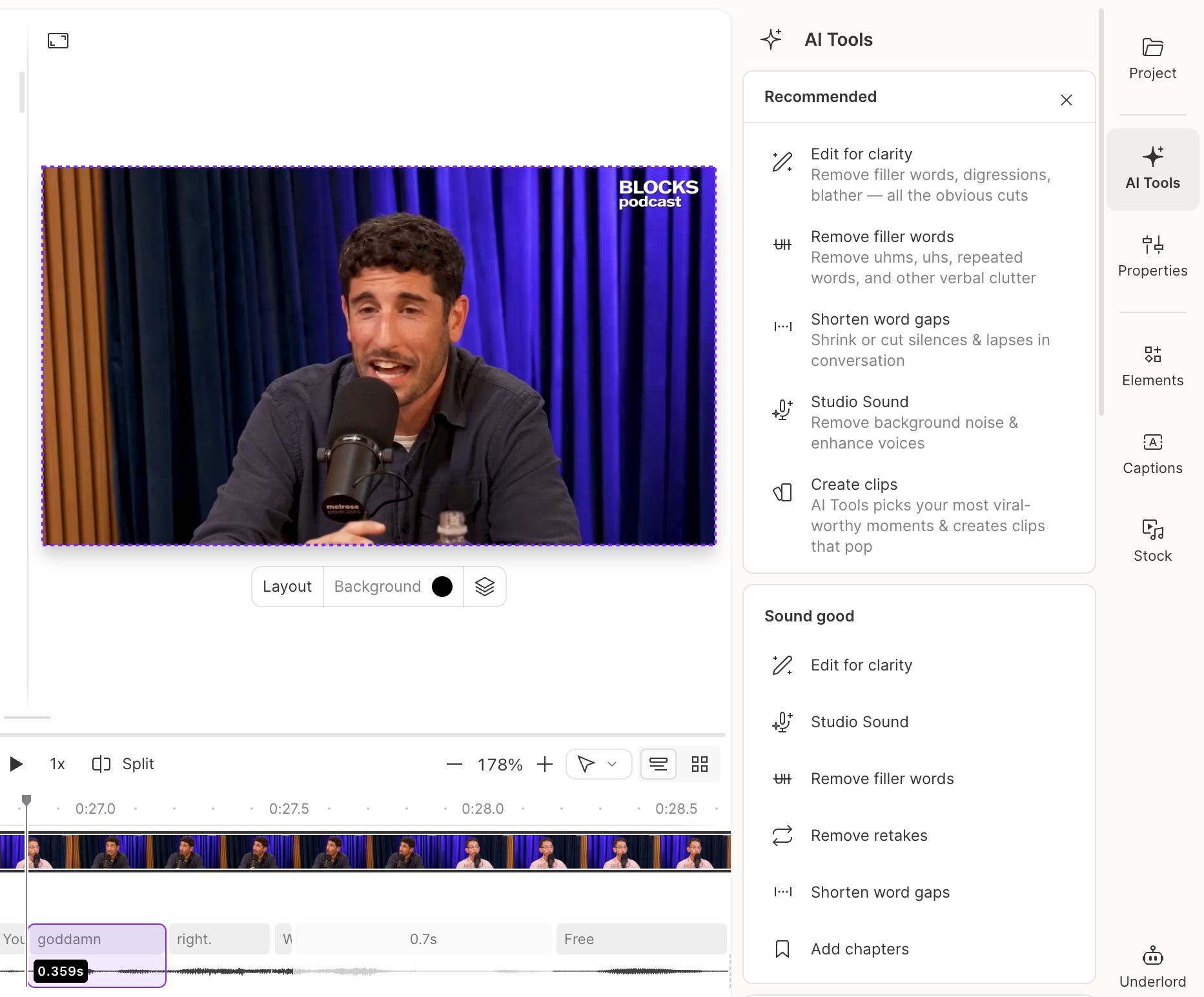
Next up: filler word removal + edit for clarity, which basically claims to wipe out all the “ums” and other vocal blasphemies we humans can’t help but sprinkle into our thoughts. I parsed out a short clip where Biggs loved to “umm” and “like” (see below)
So I clicked one button, and watched those blemishes vanish from existence on the text side and here it is cleaned up with the “Filler Words” removed.
Not perfect, a few edits were a little jumpy, but honestly, the amount of cleanup it did in seconds would’ve taken me longer by hand. On a much longer clip, this thing could easily saved hours.
You can also choose the “Edit for Clarity” option, which kinda cleans up the whole thing based on its own intuition. I actually think this one works a little better, but you’ll want to double-check that it doesn’t accidentally cut out anything important.
I wanted also wanted to test Studio Sound, Descript’s built-in AI audio cleanup tool. I uploaded a recording of me talking next to a fan blasting on my face, then I simply clicked Studio Sound, waited a few seconds, and boom it was cleaner.
The background noise got majorly toned and my voice thickened up a little.
It’s definitely not perfect, sometimes it over-compresses and still has some audio pops. Maybe good in a pinch? Will need to keep playing with it to see.
Other uncanny things
I didn’t actually test out Descript’s Eye Contact feature myself. Not because I was too freaked out by the idea of my eyeballs being deepfaked into obedience (which I actually kind of am), but because it’s locked behind the paywall of a fancy Creator plan. I was merely a humble free-tier wanderer in this experiment, tinkering with the scraps available to us peasants. But I just watched other brave souls on YouTube demo it, and yeah, it’s kinda weird. Sorry I lied to you earlier in the video when I said I’d try it myself; turns out I’m not ready to spend money to see my myself turn into an AI demon.
I also wasn’t able to personally test out Overdub, Descript’s sci-fi-level voice cloning feature, since that too lives behind the paywall. But in theory, and from watching plenty of demos on youtube, it’s pretty impressive. The idea is that Descript learns your voice, and then when you mess up a line, you can literally type the correction, and the AI version of you says it out loud like nothing ever happened, is really something.
And as stated earlier, you can do many of the other bells and whistles a lot of other tools offers such as captions, greenscreen, stock images, etc. Not very excited, but they’re there if you decide to become a “premiere be damned!” Descript disciple.
LIMITATIONS
Feature overload: There’s a ton going on here. Too much. Between editing, dubbing, captions, effects, and publishing, the interface can feel like a cluttered command center. Great power, but chaotic energy.
Not emotion-aware editing: Text-based editing is great until you realize it doesn’t know when to pause for laughter, emphasis, or sarcasm. You’ll still have to finesse it in the timeline.
Free tier restrictions: The free plan gives you a taste, but most of the real fun (like Eye Contact and Overdub) lives behind the paywall. You’ll run out of credits or hit “upgrade” prompts pretty fast. A bunch of the most advanced features also don’t work in the web version, so you’ll need to download the desktop app to do any real experimenting.
Occasional bugginess: Even when you do get rolling, playback hiccups, lag, and sync quirks pop up, especially with video-heavy projects. It’s powerful software, just not always graceful.
OVERALL
Descript is… a lot. Like, a lot. Like, too much It’s trying to be the one-stop shop for all of post-production — podcasting, video editing, dubbing, captions, AI magic, you name it — and while that ambition is admirable, it’s also overwhelming. The interface feels overstuffed, like someone crammed every creative tool imaginable into one giant suitcase and told you to “just start editing.” It’s not the easiest thing to navigate, and the UI can be straight-up intimidating if you’re new to it.
That said, once you find your footing, it’s an absolute no-brainer for podcasts and audio editing. The text-based editing alone is game-changing, and I’d honestly be shocked if most podcasters aren’t already using this. It’s also genuinely helpful for long-form interviews, with the ability to search keywords in the transcript to find sound bites being a massive time saver, and the filler word removal tool is a gift to anyone who’s ever had to edit a 90-minute conversation.
Long story short: there’s way more going on here than I could possibly test in one go, and I’ll definitely be keeping an eye on how it evolves.